Compiling and running the application (IDE Tutorial)
Go Up to Starting your first RAD Studio application Index (IDE Tutorial)
Before you can actually see your application running, you must first compile and build it.
To compile your application, press CTRL-F9 or select Project > Compile TextEditor_proj.
To build your application, press SHIFT-F9 or select Project > Build TextEditor_proj.
You then see a dialog box displaying the progress of the compilation or build. If your application contains any syntactical errors, you will have to correct them and then recompile it.
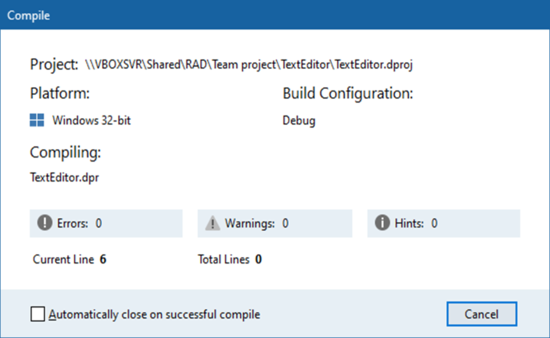
Figure 3-23. Project menu options for compiling and building the project
Figure 3-24. Dialog showing the success of compiling the application (Delphi)
Figure 3-25. Dialog showing the success of building the application (Delphi)
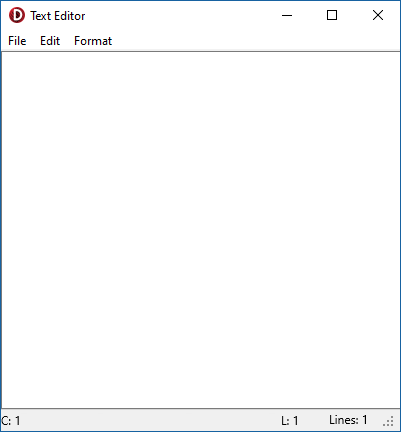
After you build the application, you can see how it behaves at run time. Press F9 or click
Run > Run to run your application in debug mode.
Figure 3-26. Running the application from the Run menu
There are a few other options available, but these are beyond the scope of this tutorial.
Note: You can directly run the application without compiling it first. RAD Studio automatically detects whether compilation is required and compiles the project if necessary.
Even if the application successfully compiles and runs, it might still not perform as you intended. The next section, Debugging the application, describes how to use some of the RAD Studio debugging features to rapidly find and fix bugs.