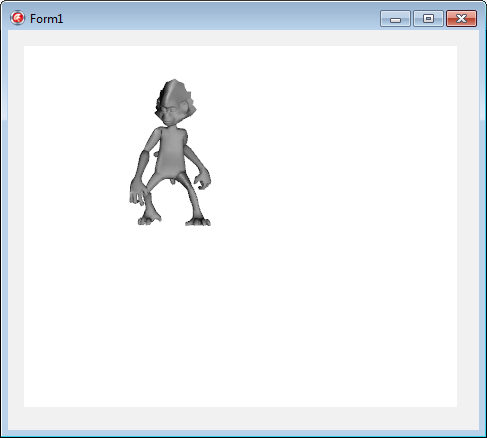
Importing a 3D Model in a FireMonkey Application
Go Up to Tutorial: Importing 3D Models (FireMonkey)
This tutorial shows, step by step, how to import a 3D model.
Create a FireMonkey HD or 3D Application and Add Components
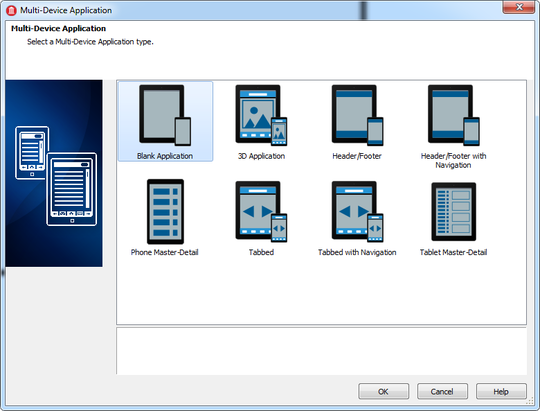
- Select File > New > Other > Multi-Device Application - Delphi:
- Select either HD Multi-Device Application or 3D Multi-Device Application in the Multi-Device Application wizard.
- This tutorial uses an HD multi-device application, but you can also import a 3D model using a 3D Multi-Device Application.
- Add a TViewport3D component to your form.
If you are using a 3D Multi-Device Application, skip this step; your 3D form already contains a TViewport3D component. - Add a TLight as a child of the TViewport3D component. Add TLight as follows:
- Add TLight to your form if you created an HD Multi-Device Application.
- (Click the form in the Form Designer and then double-click TLight in the Tool Palette.)
- Add TLight as a form child if you created a 3D Multi-Device Application.
- Add TLight to your form if you created an HD Multi-Device Application.
- Add a TModel3D as follows:
- Add TModel3D as a child of the TViewport3D component if you are using an HD Multi-Device Application.
- Add TModel3D as a form child if you are using 3D Multi-Device Application.


Import a 3D Model Using the Mesh Collection Editor
- Select the added TModel3D in the Structure View.
- In the Object Inspector, open the Mesh Collection Editor by clicking the ellipsis [...] in the MeshCollection field on the Properties page:
- Load a 3D format file by pressing the Load button on the Mesh Collection Editor and navigating to a 3D file (.ase, .dae, .obj).
- This tutorial uses the FireMonkey.dae model, which is available in your product installation inside the Samples\Object Pascal\Multi-Device Samples\User Interface\ModelViewer\FireMonkey directory. See Samples Descriptions for more information.
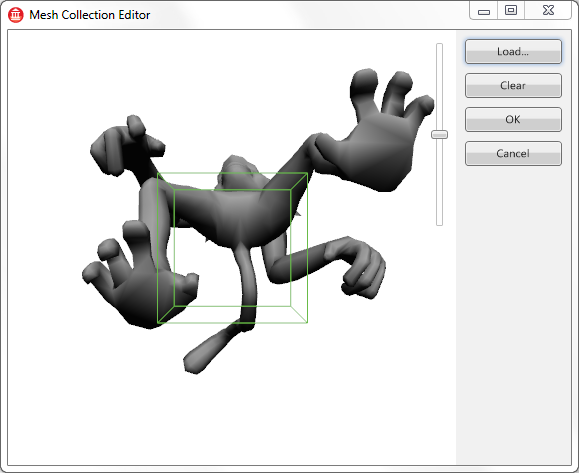
- After the model is loaded and displayed in the Mesh Collection Editor, you can:
- Scale the model using the trackbar on the right side of the Mesh Collection Editor.
- Rotate the model by clicking the model and dragging it in the opposite direction of the desired rotation.
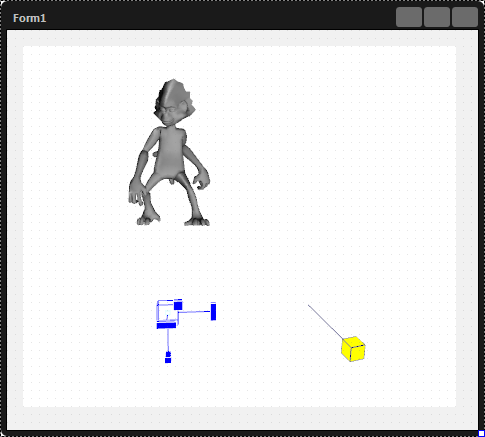
- When the model is in position and is correctly scaled, click OK on the Mesh Collection Editor to display the model on the form:
- Run the project: