Structure View
Go Up to Tool Windows Index
View > Tool Windows > Structure View
The Structure View:
- Is displayed in the upper right pane in the IDE when you are working in the Form Designer.
- This is the same pane that is used by the Code Explorer when you are editing code in the Code Editor.
- Displays a tree diagram that shows the hierarchy of elements in the active window (that is, the Code Editor or the Form Designer), as follows:
- Components displayed on the Form Designer
- Click a component in the Structure View to select it on the form.
- Source code or HTML displayed in the Code Editor
- Double-click an item in the Structure View to jump to its declaration or location in the Code Editor.
If your code contains syntax errors, they are displayed in the Errors node in the Code Explorer. You can double-click an error to locate the corresponding source in the Code Editor. (Not applicable for C++ development.)
Component Nesting Management
When you use the Form Designer, the Structure View shows a tree view that represents the parent-child relationships between the components on the current form or data module. You can use the Structure View to modify these parent-child relationships.
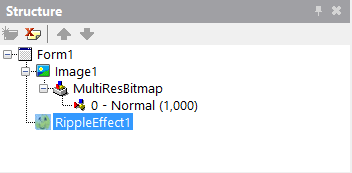
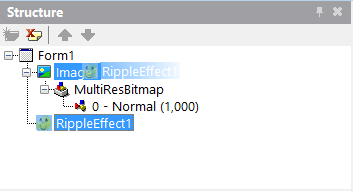
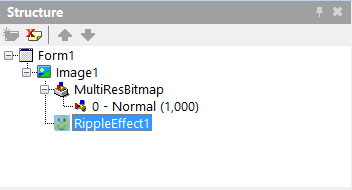
To change the parent of a component, drag the component in the Structure View onto its new parent component. Both the tree view in the Structure View and the form or data module in the Form Designer are updated to reflect the nesting change.
Changing the Parent of RippleEffect1 from Form1 to Image1:
Nodes and Items Displayed in the Structure View
The tree structure in the Structure View provides a different type of information depending on the tool in use (Code Editor vs. Form Designer) and the language of the current document (Delphi, C++ or HTML). When you are editing code, the Structure View contains the Code Explorer.
Nodes and Items Displayed for the Form Designer
When you use the Form Designer, the Structure View shows a tree view that represents the parent-child relationships between the components on the current form or data module. Each item in the tree view has a label with the component name, and an icon that represents the type of the component:
 Form
Form Data Module
 Container or Frame
Controls and Nonvisual Components appear on the Structure View with the same icon as in the Tool Palette, when available.
When there is no counterpart for a component on the Tool Palette, the Structure View displays a default icon. This applies, for example, to the TListBoxItem of a TListBox.
Default icons:
- for container controls.
 for non-container controls.
 for nonvisual components and other entries, like properties.
Nodes and Items for the Code Explorer (Delphi)
While you edit a Delphi source file in the Code Editor, the Structure View becomes the Code Explorer and shows a tree view that can contain the following information:
 <Interface Name>(<Parent Class>)
 Properties node
 <Property Name>: <Property Type>
- Methods node
 <Procedure Name>(<Parameter List>)
 <Function Name>(<Parameter List>): <Return Type>
- Classes node
 <Class>(<Parent Class>)
- <Private Property Name>: <Property Type>
- <Private Procedure Name>(<Parameter List>)
- <Private Function Name>(<Parameter List>): <Return Type>
- Protected node
- <Protected Property Name>: <Property Type>
- <Protected Procedure Name>(<Parameter List>)
- <Protected Function Name>(<Parameter List>): <Return Type>
- Public node
- <Public Property Name>: <Property Type>
- <Public Procedure Name>(<Parameter List>)
- <Public Function Name>(<Parameter List>): <Return Type>
- Published node
- <Published Property Name>: <Property Type>
- <Published Procedure Name>(<Parameter List>)
- <Published Function Name>(<Parameter List>): <Return Type>
- Procedures node
- <Procedure Name>(<Parameter List>)
- Types node
 <Type Name>
- Variables/Constants node
- <Constant Name>
- <Variable Name>: <Variable Type or Class>
- Uses node
 <Unit Name>
Nodes and Items for the Code Explorer (C++)
While you edit a C++ source file in the Code Editor, the Structure View becomes the Code Explorer and displays a tree view that can contain the following information:
 Includes node
 <Include Filename>
 Macros node
 <Macro Name>
 <Class Name>
 <Constructor Name>(<Parameter List>)
 <Destructor Name>(<Parameter List>)
 <Property Name>(<Parameter List>)
 <Function Name>(<Parameter List>)
- <Constructor Name>(<Parameter List>)
- <Destructor Name>(<Parameter List>)
- <Property Name>(<Parameter List>)
- <Function Name>(<Parameter List>)
Nodes and Items for the Code Explorer (HTML)
HTML documents are written using a hierarchical structure. The Code Explorer displays a tree view representing that structure for navigation purposes. Each node in the structure has a label with the initial tag of the HTML element the node represents.
This is an example of a tree view for a simple HTML document:
 DOCTYPE
 <html>
  <head>
   <title>
  <body>
   <p>
Context Menus for Structure View and Code Explorer
The commands that are available on the context menu depend on whether the Structure View or the Code Explorer is being displayed. Right-click the pane to display the following commands:
| Item | Description |
|---|---|
|
New |
Adds a new node to the Structure View. |
|
Rename |
Changes the name of the selected node in the Structure View. |
|
Edit |
Displays a submenu allowing you to undo changes, cut, copy, paste, delete, or select the controls on the Designer or in the Code Editor. |
|
Control |
Displays a submenu allowing you to bring the selected control to the front or send it to the back of the Designer. |
|
Toggle EditMode |
Toggles between showing items in the regular and edit modes. This toggles the EditMode property ( |
|
Toggle DesignMode |
Activates the ListView Design mode that allows you to visually customize the appearance of ListView items at design time. Appears when right-click list view control. |
|
Bind Visually |
Opens the LiveBindings Designer. |
|
Properties |
Displays the Structure Options dialog box allowing you to change the content and appearance of the Code Explorer. |
|
Stay on Top |
Displays the Structure View on top of the desktop even if other windows are displayed. |
|
Dockable |
Enables drag-and-dock for the Structure View. |
Toolbar (C++)
The Structure View contains a toolbar for C++ application development that allows you to control how the contents of the Structure View are displayed. It consists of the following buttons:
|
|
Sorts the contents of the Structure View alphabetically. | ||||||||||
|
|
Groups items into folders by type in the Structure View. | ||||||||||
|
|
Groups class members into folders by visibility: public, protected, private, and published. For C++ , 'Classes' is a generic group that encompasses classes, structs, unions and templates. | ||||||||||
|
|
Displays the type to the right of the member in the Structure View. | ||||||||||
|
|
Toggles the Structure view display through four different visibility levels. You can selectively display several different combinations of elements that were declared with the access specifiers __published, public, protected, and private. The four successive tooltips (with 1 - 4 vertical bars) indicate the elements that are currently being displayed, as follows:
|


