First Use Dialog
Theme Selection
Go Up to Installation
Once the installation is complete, you can select between RAD Studio integrated themes.
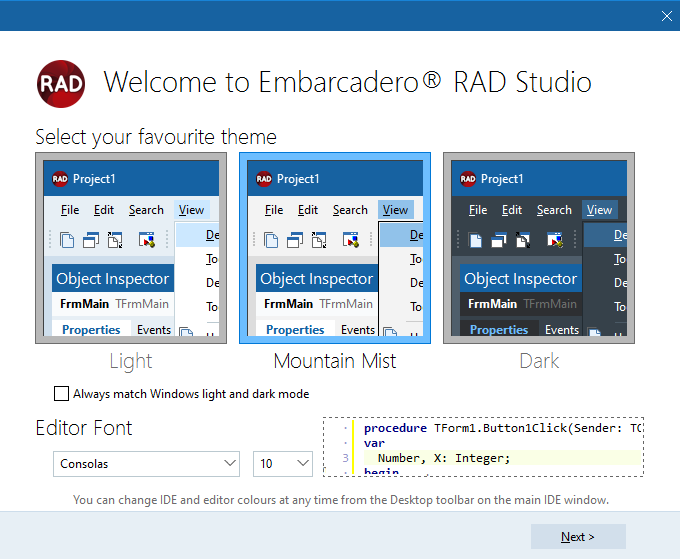
This screen shows:
- Themes: choose between Light, Mountain Mist, or Dark.
- Editor Font: choose the font style and size for the IDE to display.
- A Next button to open the IDE Welcome screen.
You can change the theme at any time; just go to Tools > Options > User Interface > IDE Style, and select a theme.
To run the application with a clean registry (i.e., no previous settings or configurations), use the -r flag followed by any unique name. This will create a new, blank registry key and run the application as if it is being launched for the first time.
When running the application with a clean registry, certain dialogs may behave differently. For instance, the setup dialog will display two pages, which may not be visible when using an existing configuration.