High DPI
Go Up to Form Designer Options
Tools > Options > User Interface > Form Designer > High DPI
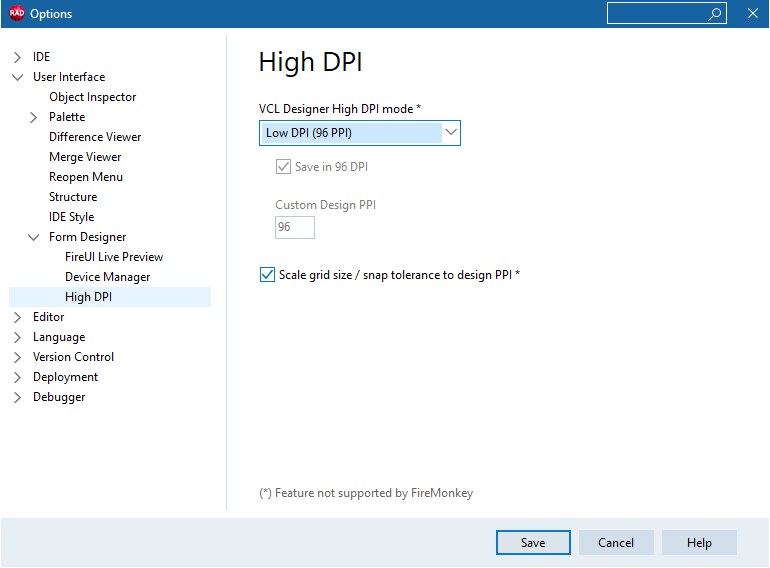
VCL Designer DPI mode
The VCL form designer can handle High DPI scaling in three different ways. Select a value in ‘VCL Designer High DPI mode’:
- Automatic (Screen PPI): The designed forms are scaled to the current screen the designer is placed on. It uses the same scale as the other IDE windows on the same screen
- Low DPI (96 PPI): This is the default High DPI mode. Forms are scaled to 96DPI, which is 100% scaling for Windows. If your screen has a higher DPI, then the form will be visually smaller than the UI elements of the IDE.
- User Editable: Choose any DPI to scale forms to.
When you select the User Editable option, the PixelsPerInch becomes a writable property, and you can enter a PPI value to scale the form to that PPI in the designer. If the scaling is set to Automatic or Low DPI, this property becomes IDE-managed and is read-only.
The PixelsPerInch overload property ensures a form is always designed and saved at a specific PPI.
Set
TForm.Scaled to True for scaling to take effect in the designer.This setting applies to all forms that the IDE opens. Forms and controls are scaled at design time using the same perMonitorv2 high DPI support that is used when scaling at runtime.
The design DPI is saved in the form DFM and affects the pixel coordinates and sizes of controls (such as Left and Height.) This means that opening a form changes the values that will be saved to the DFM file. If your team uses multiple different scaling settings among team members, you can set the User Editable option on each computer to have a consistent common scaling for all forms among all team members.
When designing forms that will run at High DPI, do not turn ParentFont to
True for a form.
Save in 96 DPI
This setting enables the use of either the screen DPI or a custom DPI for design, while saving the DFM file at 96 DPI resolution.
This option is checked by default.
Scale grid size / snap tolerance to design PPI
You can change the visual grid on a form by selecting the Scale grid size / snap tolerance to design PPI option.
By default, this draws a dot every 8x8 pixels, though this is configurable. When this checkbox is checked, the value (e.g. 8x8) is scaled the same as the form.
High DPI for the FMX Form Designer
The FireMonkey designer scales a form the same way an FMX form does at runtime. Coordinates remain the same, it is only a visual scaling. That means that a button placed at (20, 20) will be at (20, 20) no matter the high DPI scaling of the monitor the FMX designer is on.