Bookmarks
Go Up to Editor Options
Tools > Options > Editor Options > Bookmarks
Configuring Bookmarks
You can access the Bookmarks configuration options by going to Tools > Options > Editor Options > Bookmarks.
Use this page to configure Bookmark preference.
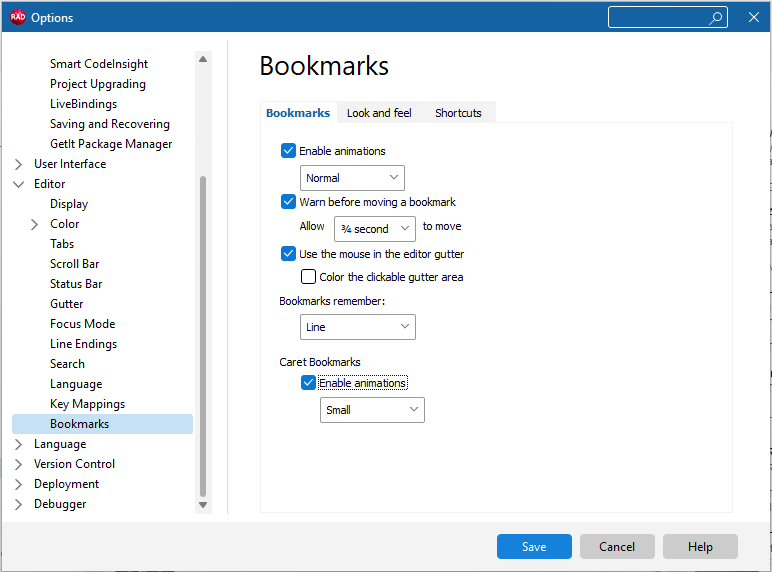
Bookmarks Tab
Tools > Options > Editor Options > Bookmarks and click on Bookmarks tab.
Use this tab to configure your preferred Bookmark configuration settings.
| Item | Description | ||
|---|---|---|---|
|
Enable animations |
Choose this option to enable animations. When enabled, choose the size of the onscreen animated indicator:
| ||
|
Warn before moving a bookmark |
Enable or disable the prevention of moving an existing bookmark. When enabled, it is possible to change the time limit in the drop-down box to one of the following time options:
You can overwrite the bookmark, even with the warning, if you double-press the keys within the time limit. | ||
|
Use the mouse in the editor gutter |
Choose this option to create and delete bookmarks with the mouse in the code editor gutter.
| ||
|
Bookmarks remember: |
Select from the dropdown menu if Bookmarks remember Line or Line and column. | ||
|
Caret Bookmarks |
Choose this option to enable animations for the Caret Bookmarks. When enabled, choose the size of the onscreen animated indicator:
|
Look and Feel Tab
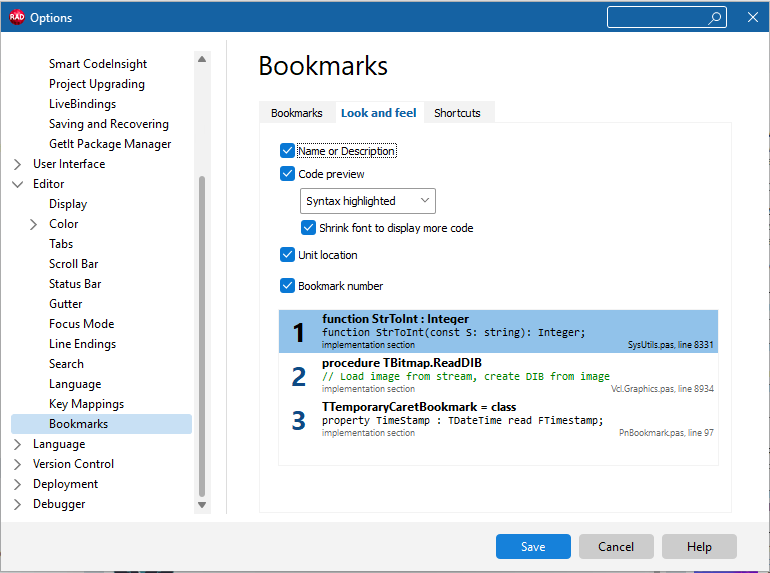
Tools > Options > Editor Options > Bookmarks and click on the Look and Feel tab.
Inside the look and feel tab, choose which data you want to see in the dockable window.
See the small preview window showing how the disposition would change.
| Item | Description |
|---|---|
|
Name or Description |
Choose this option to display the Bookmark's name or description. |
|
Code preview |
Choose this option to display a code preview.
|
|
Unit location |
Choose this option to display the unit's location. |
|
Bookmark number |
Choose this option to display the Bookmark number. |
It shows the location of the bookmark when you try to set one that already exists with a dark blue location indicator.
Shortcuts Tab
Tools > Options > Editor Options > Bookmarks and click on Shortcuts tab.
This tab provides a list of shortcuts for the Bookmark functionality, which users can customize to their preferences.
The Bookmarks functionality provides many shortcuts for quick actions. Here is a list of the most common ones:
Ctrl+B- Place a new Bookmark, and a number will automatically be assigned.Ctrl+Alt+LeftorCtrl+Alt+Right- Jump between Bookmarks.Ctrl+Shift+B- drops a temporary caret bookmark.Esc- jumps back to the previous caret bookmark.
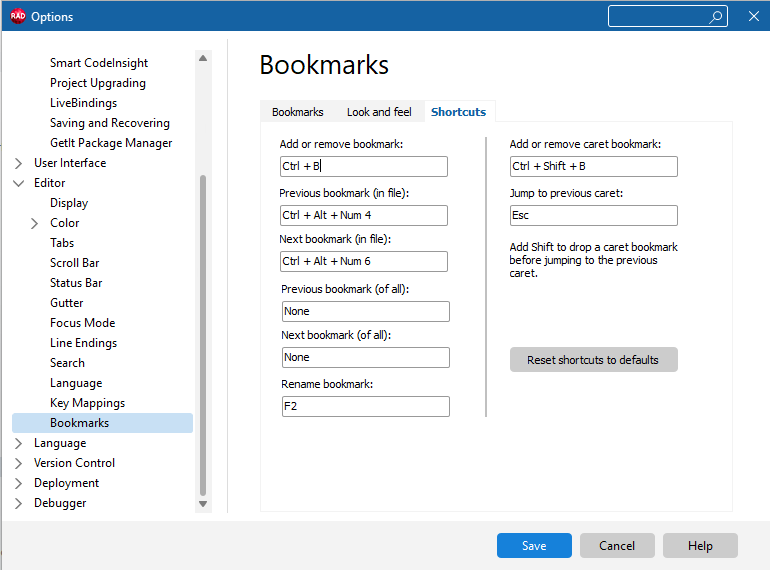
It is not recommended to change this, as there is no way to know which shortcuts the IDE or other functionalities have already taken. However, this is available for power users who prefer complete customization.
Hit the Reset shortcuts to defaults button in case you need to return to the default settings.
Using Bookmarks
Adding a Bookmark
Press Ctrl+B to add a bookmark in the current line. A small animation displays the bookmark number, indicating where the bookmark was added.
If you don't remember the last bookmark number, the next one will be automatically selected if available.

When you set a bookmark, a book icon  is displayed in the left gutter of the Code Editor. You can use up to 255 bookmarks per file, numbered
  through 255 Bookmark using hexadecimal values.
If you want to set a specific bookmark number, press
Ctrl+Shift+[0-9]. Only available for the first 10 bookmarks.Going to Bookmarks
To go to a specific bookmark, press Ctrl+[0-9] or double-click it in the dockable window.
The shortcuts
Ctrl+[0-9] are only available for the first 10 bookmarks.To navigate between all bookmarks in the current file, press Ctrl+Alt+Right Arrow or Ctrl+Alt+Left Arrow.
This takes you to the next or previous bookmark in the current file, sorted by line number.
Overwriting Bookmarks
Editor Bookmarks prevents you from overwriting an existing bookmark. It shows the location of the bookmark when you try to set one that already exists with a dark blue location indicator.
At any time while the dark blue warning is shown onscreen, you can press the shortcut again to indicate you want to move the bookmark.
Removing Bookmarks
To remove a bookmark, place the cursor where the bookmark was set and press Ctrl+B. This time, the bookmark is removed. You will see a small animation showing that it has been deleted.
It can also be removed by pressing the bookmark animation.
Bookmarks are automatically saved. They appear every time you open the IDE unless you remove them manually.
Caret Bookmarks
Caret bookmarks are meant for quick code navigation when you don’t want to keep the marker around.
They remember the character position, as well as the line, and are useful for copying, jumping back, and pasting immediately.
Caret bookmarks vanish when you jump to them and when the code they’re in changes.
To add a caret bookmark, press Ctrl+Shift+B.
Caret bookmarks are navigated to in time order. Press Escape to jump to the last placed temporary bookmark. This takes you to the bookmark and removes it.
Caret bookmarks are temporary. They are removed when you navigate to them or close the file they are located in, or when you close the IDE.
Bookmarks Window
The Bookmarks Window shows a list of all bookmarks in the current file and across all open files. You can open it by going to View > Tool Windows > Bookmarks.
The Bookmarks Window displays essential information about each bookmark's location. It shows whether the bookmark is in a procedure or a function, the method’s name, and, if it is in a class, the record or other declaration.
The window can be docked and tabbed with other IDE windows, like the Tool Palette, Structure View, or Breakpoints.
Save the current IDE Desktop layout from the IDE's Desktop toolbar; this way, the windows will reopen in the same position next time you open the IDE.
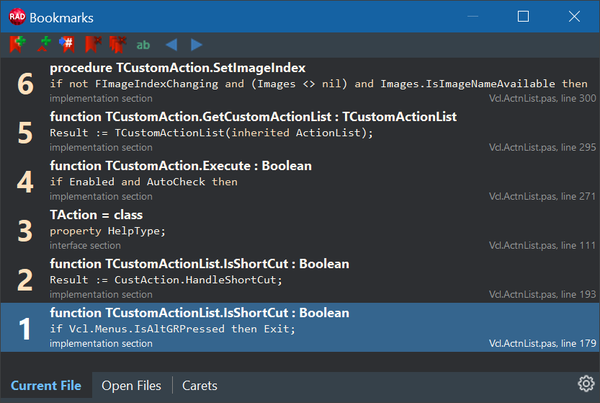
The dockable Bookmarks window has three tabs at the bottom:
- Current File:
- Lists all bookmarks in the current source file.
- Open Files:
- Lists all bookmarks in all open files in the IDE.
- Carets:
- Lists all caret bookmarks.
Double-click a bookmark to navigate to that bookmark.
For Delphi-language files, each bookmark shows information about the location of each file. The large text indicates the method, type, or similar category in which it is located. The small text shows the section of the file, the file name, and the line number.
For C++ language files, bookmarks list the line of code, the file name, and the line number.
Bookmarks Dockable Window Options
The dockable window has different toolbar buttons that allow you to:
| Item | Description |
|---|---|
|
|
Adds a new bookmark at the current line, if one is not already set. ( |
|
|
Adds a temporary bookmark at the current line and character, if one is not already there. ( |
|
|
Goes to the selected bookmark (click in the list to choose). Note that you can double-click a bookmark to go there immediately. |
|
|
Deletes the selected bookmark. |
|
|
Deletes all bookmarks shown in the current tab |
|
|
Rename or add a description to the selected bookmark |
|
|
Goes to the previous or next bookmark in the current file ( |
|
|
Opens the Bookmarks configuration options. |


