Using Layouts to Arrange Components
Go Up to Tutorial: Using FireMonkey Layouts
This tutorial demonstrates how to use FireMonkey layouts to arrange 2D components in a round pattern.
- Select File > New > Other... > Delphi Projects > Multi-Device Application > Blank Application:
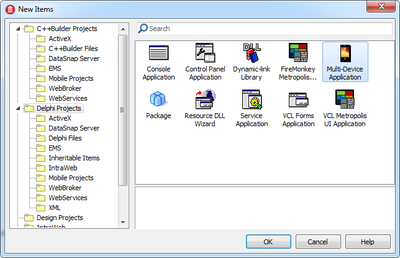
- Creating a Delphi HD Application
- Add a TLayout to the form.
- Add to the TLayout:
- In the Object Inspector, make the following changes:
- Error creating thumbnail: Unable to save thumbnail to destination
- For the layout, move the rotation center point in the middle of the bottom edge by setting the RotationCenter.X to
0.5, and RotationCenter.Y, to1. - Rotate the layout by setting the RotationAngle to
-90.
- For the layout, move the rotation center point in the middle of the bottom edge by setting the RotationCenter.X to
- Error creating thumbnail: Unable to save thumbnail to destination
- In the Structure View, right-click the layout and follow the steps in the images below to copy and paste the layout on the form.
- Rotate the second layout by setting the RotationAngle to
-60. - Continue copying and pasting the last modified layout, and change its RotationAngle with a value with
30grades higher than the previous layout, until you reach a RotationAngle of90.- This is the final pattern:
- Error creating thumbnail: Unable to save thumbnail to destination
- Run the project by pressing F9. The result should look like this:
- To obtain a different visual effect, go to the Object Inspector, and change the RotationAngle of each label on the form to
90:


