Kai Installation
Go Up to Kai
This section explains how to download and install Kai for RAD Studio.
Download Kai
Download Kai using the GetIt Package Manager in any edition of RAD Studio 13 Florence, Delphi 13 Florence, and C++Builder 13 Florence. This includes both versions 13.0 and 13.1, as well as the Trial SKU.
Users can also install Kai in RAD Studio 12.x, Delphi 12.x, and C++Builder 12.x (32-bit IDE only), except for the Community Editions.
Using the GetIt package manager, search for Kai and click Install.

Another option is to download Kai from the Embarcadero customer portal with an active EDN account.
The latest Kai version 1.1.1, is available in GetIt. You can find it in the GetIt Package Manager dialog or from the Kai Welcome Page. The installer automatically removes the previous version and installs Kai 1.1.1. Restart RAD Studio to complete the update.
Kai Installation
After you download it from the GetIt package manager, the installation window appears. Follow the steps to complete the installation.
- Ensure to read the License Agreement information, select the I accept the agreement option, and click Next.
- Ensure you read the Information screen and click Next.
- Select the destination location folder.
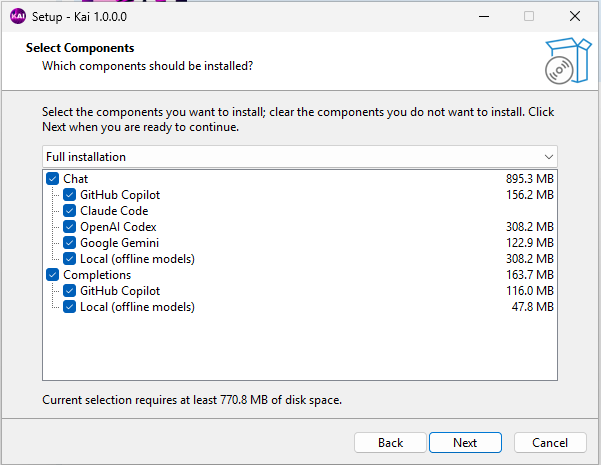
- On the components screen, you can select components manually or choose one of the drop-down options: Full installation, Compact installation, Custom installation, Local models only, Chat only, or Completions only.
- Select any additional task you wish to perform.
- On the Ready to Install screen, review all selected settings, then click Install to begin installation.

Once the installation is complete, the RAD Studio splash screen displays a specific entry for the Kai package, along with its licensing status.

Additionally, users can now customize and configure Kai Options, such as Completions, the Chat, and additional MCP servers, by navigating to Tools > Options > Kai.
Installed CLIs
The following CLI local LLMs interfaces are preinstalled with Kai. These tools are installed in the main Kai folder by default.
- Copilot Language Server
- Copilot CLI
- GitHub CLI
- Codex CLI
- Gemini CLI
- LLM-LS
- Codex ACP
- Claude Agent ACP
Claude Integration
If you wish to integrate Claude Code as an LLM interface, you first need to have npm installed to install the Claude Agent ACP. The next step would be to install Claude Code. Note that the Claude Agent is not the same as the Claude desktop app. You need to install the Claude Agent even if you have previously installed Claude Desktop.
Claude Code cannot be legally distributed by a third-party installer.
Follow the steps below to integrate Claude Code:
1. Close RAD Studio if it is open.
2. Download the Node.js LTS installer.
3. Install Node.js; this also installs npm.
4. Open a terminal to use npm, and run:
Npm install -g @agentclientprotocol/claude-agent-acp
5. Install Claude Code from PowerShell and add it to the path as needed, for example:
Irm http://claude.ai/install.ps1 | iex
6. Now, from the terminal window, run the following Claude command:
claude
7. A prompt pops up asking users to log in to Claude. Follow the instructions and, in the browser window, log in to your Claude account. Once logged in, return to the terminal window.
At this point, the installation is complete, but it is necessary to ensure that Claude tools are visible in RAD Studio. This can be done by checking the path environment variable.
8. Click the Windows key and search for "envir". Select the Edit the system environment variables option.

9. When the System Properties window opens, ensure you are in the Advanced tab and click the Environment Variables option.

10. In the Environment Variables window, select the Path variable and click the Edit button.

11. In the dialog box that appears, click on the New button.

12. Next, edit the new blank entry by typing:
%USERPROFILE%\.local\bin
13. Click Ok and close the Environment variable window.
14. Now, when you go into RAD Studio, you will be able to select Claude as one of the options in the Kai Chat window.
When navigating to the Tools > Options > Kai settings, Claude Code cannot detect whether you are logged in; therefore, the Kai settings configuration window displays a message requesting that users log in. This is static and does not reflect the real status.
Migration Guides
This section details how to migrate versions in Kai.
Migrating from Kai 1.0.x to Kai 1.1
The introduction of the ACP registry and the agent upgrade can cause incompatibilities with previous versions of Kai. The following differences should be considered:
- For OpenAI Codex integration, if you see a compatibility error with SQLite, it’s because the database is incompatible. Delete the
.codexfolder under the user account and start anew. - Some of the CLI agents use environment variables for configuration. These new environment variables are not generally visible to the RAD Studio IDE unless it is restarted. While this step is not required for every installation, it can be helpful in several specific scenarios (which are not always reproducible). If the new agents are not visible after configuration and login, consider restarting the RAD Studio IDE.
- An example is the Claude integration: after installing Claude support and logging in, it may be necessary to restart the IDE for the integration to work (the visible issue is that the chat is not responding).
- For OpenAI integration: if you see the error “
CODE_API_KEY or OPENAI_API_KEY is not set”, this is an issue in the CLI (independent of Kai). It is recommended to set that environment variable manually. - For GitHub: after installing GitHub’s Copilot AI tooling, you might see an error that no authentication exists until you restart the RAD Studio IDE.